How to log a repair with New issue, send the contractor the job, and follow it to resolution.
Use New issue to log a repair yourself, whether a tenant reported it or not, and to run it from the first call to the final cost. This article follows one repair on one property, a leaking kitchen tap, from the first screen to the closed issue.
On a property's Maintenance tab, select New issue. A window opens with four steps. Continue moves you on.


Further down this step, How do they get in? takes the access note. A switch labelled Send and then the contractor's name and the job form sends the job as soon as you create the issue. Leave it off to send it yourself later, as this article does.


If you pick It's already sorted, step 3 is skipped and nobody is contacted. Skip leaves a step out. Save for later, or the close button, keeps your draft. Discard draft on step 1 throws it away.
If you choose Decide later for the contractor, the Progress card shows an orange Choose contractor button. Select it and pick someone from the list. Nothing is sent until you send the job. To add someone who is not saved yet, see Your contractors.
Once a contractor is chosen, the Contractor step reads Job form not sent yet. An orange button below it carries the contractor's name, Send job to and then the name.

Select it. The Send job to window opens. Choose WhatsApp or Email, check the address, then select Send job. Preview email shows what they will get first, and nothing is sent by the preview.

The step then reads Job form sent with the date and the channel. What the contractor sees is in What your contractor sees on their job page.
The contractor can send a price on their page. It appears as a Quote step on the Progress card, with what it covers, the earliest day they can come and an orange Approve quote button. The quote also shows under Costs, and the issue's Activity records that they sent it.

Select Approve quote. The step changes to quote approved, and the contractor gets an email saying so. To ask them something first, use the job conversation on the Conversations tab.
The orange button then moves to Book a visit. Select it. A small window asks for the Date, From and To. It opens on today, so change the date if the visit is later.

Select Save. The Agreed visit step shows the day and times, with a pencil to move it. The contractor's page shows the booked time. A private issue tells no tenant.

The pencil moves the visit. It asks why, and the old time stays in Activity. If a visit already took place before you used the app, open Actions and choose Add a past visit.
The contractor reports the work from their page. On your side the Agreed visit step says they marked it complete, and the Done step shows their note with a Check and resolve button. A Work status button beside the visit lets you record Job complete, Requires further work or Didn't happen yourself.
If they sent an invoice, it shows in the Costs box marked Invoice to check, with a Confirm cost button.
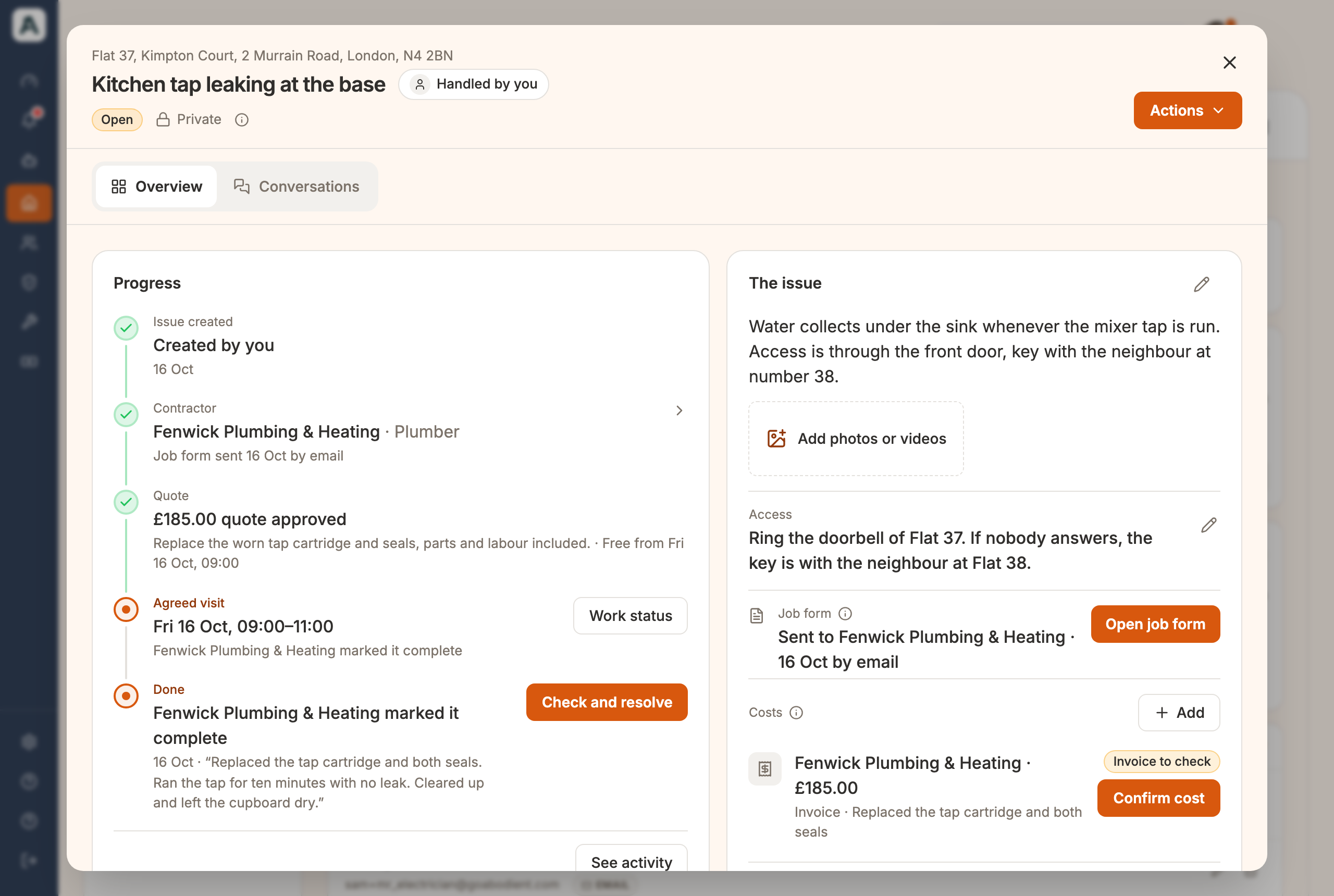 📱 Mobile screenshot coming soon
Select Confirm cost. A message says the cost is confirmed and is on the property's Finance tab. The row under Costs changes to Confirmed.
Select Check and resolve. If the contractor has not reported yet, the same button reads Mark completed. A window asks how it was sorted: A contractor did the work, I sorted it myself or Nothing needed doing. It also asks when, and who did it. + Add what it cost records a cost at the same time, which you do not need here because you already confirmed the invoice.

Select Resolve issue. The issue now reads Resolved. The Progress card keeps the whole story, from the contractor and the approved quote to the agreed visit, and the Costs box shows what you confirmed.

A resolved issue can be reopened with Reopen. It asks why, and everything so far is kept.
For how a tenant's own report reaches you, see Following a repair from start to finish.