What the contractor's job link shows and lets them do: quote, time, proof of work, invoice, and handing the job back.
When you send a job, your contractor gets a link to that one job. It opens a page in their phone's browser, with no account and no login. This article follows the same kitchen tap repair as Raising and running an issue yourself and shows both sides: what you do in the app, and what the contractor sees.
On the issue, the Contractor step shows an orange button, Send job to and then the contractor's name. It appears once you have chosen a contractor.

Select it. The Send job to window opens. Choose WhatsApp or Email, then select Send job. Either way the message says it is from Abodient on your behalf, gives your name, the address and the issue title, and links to the job page.

By email it comes with the subject "New job from" and your name, then the issue title. By WhatsApp they get a short message with a See the job button, then a second message with the link. Preview email or Preview message shows exactly what they will get. Nothing is sent by the preview.
The page has two tabs, Your quote and Job completion. A green banner at the top says where the job stands. A quote is optional. The page tells them to send one if you need a price first, or to go straight to Job completion when the work is done.
To quote, they enter Your price and what it covers. They can tick This is a call-out fee — the full price follows the visit. They can add the earliest day and a time. Then they select Send quote.

Their page then reads Your quote is with the landlord, and they can change it with Revise quote. They cannot mark the job completed while a quote is waiting for your answer.
You see the quote as a step on the issue's Progress card, with an orange Approve quote button.

Select Approve quote. The step reads quote approved, and their page shows £185.00 · approved.
You book the visit in the app with Book a visit. Their page then reads You've got the job and gives the booked time.

Below the banner, the page has three sections.

Message landlord opens one conversation with you, and with the tenant if you included them. You read and reply on the issue's Conversations tab. Add note sends you an update, with photos if they like, without starting a conversation.
When the work is done, they open Job completion and fill in what applies, then select Send to the landlord.

On your side, the issue says they marked it complete, and the Done step shows Check and resolve. The invoice shows in Costs as Invoice to check, with Confirm cost.
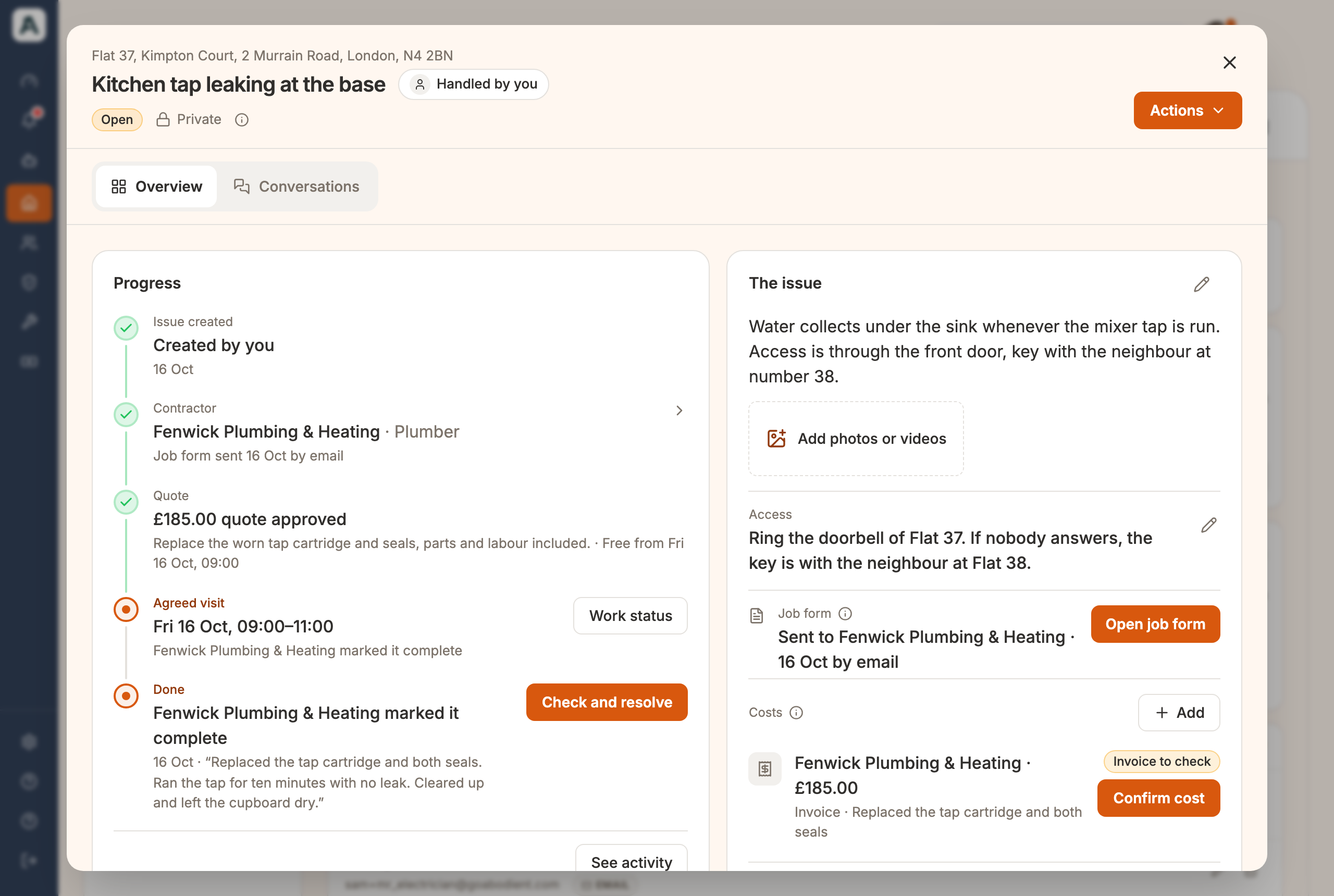 📱 Mobile screenshot coming soon
Select Confirm cost. It is recorded on the property's Finance tab, and the contractor's banner changes to The landlord confirmed your £185.00 invoice. To close the issue, see Raising and running an issue yourself.
On the issue, the Job form row has a Preview link before you send. After you send it, the same row has an orange Open job form button. Either opens their page with a Preview · View only note at the top. The buttons are locked, so you cannot send or change anything by mistake.

At the bottom of their page is Can't do this job. They give a reason and select Tell the landlord. The issue then shows their reason and an orange Choose someone else button. Their page changes to You've handed this job back.
If you change contractor, the old link stops working. It tells them This job link is no longer available. The new contractor gets a fresh link when you send the job.
If you ticked Trusted contractor on their record, a See my other jobs button sits at the top of their page. It lists every job you have given them, without a login. See Your contractors: saved, found, approved.
On a repair Alfred handles, the page looks the same, but Job completion stays locked until you choose that contractor. A contractor Alfred has asked sees I can't do this job instead. See When a tenant reports a problem.